SystemRescueCd guide
SystemRescueCd Boot Troubleshooting: USB, UEFI, Display & RAM
Boot failures are often caused by the media, firmware mode, display path or memory rather than the rescue environment itself. Test those layers in a consistent order.
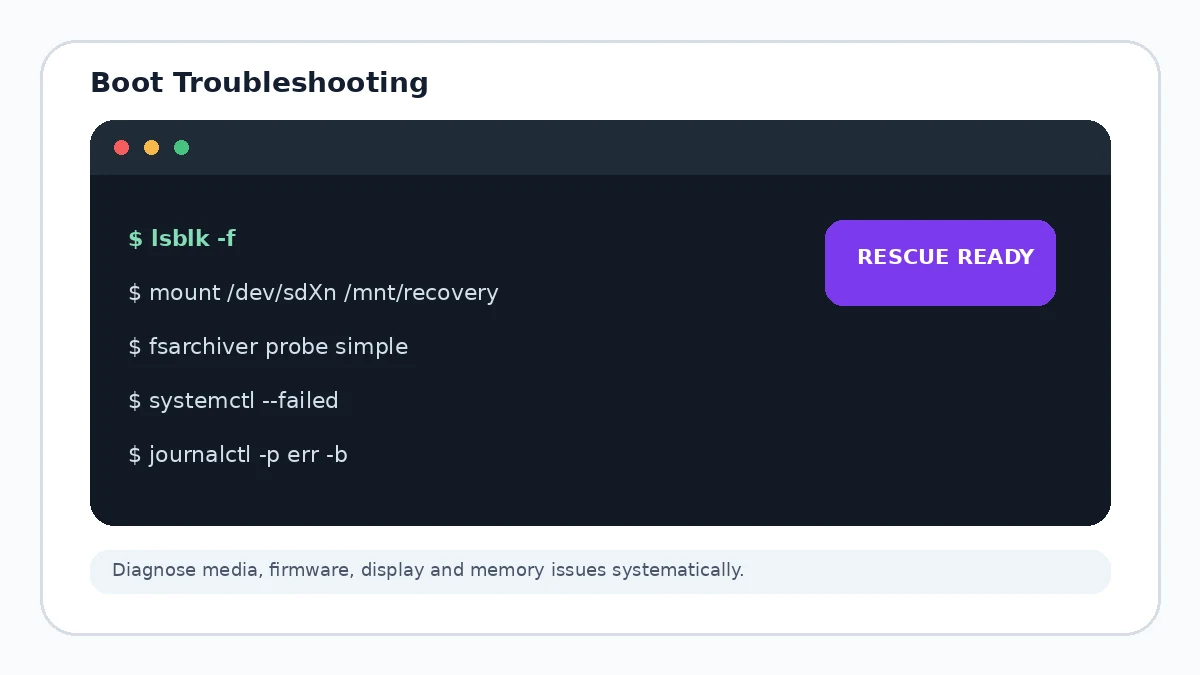
Step 1: verify the image and media
Recalculate the checksum, rewrite the USB and test another removable device if possible. Bad flash storage can produce inconsistent or misleading boot failures.
Step 2: review UEFI or BIOS settings
Use the one-time boot menu, confirm that the removable device is actually selected and check whether the system expects UEFI or legacy boot mode.
Display failure after the boot menu
If the kernel starts but the display becomes unusable, try a basic graphics path such as nomodeset. This can separate a graphics-mode problem from a broader boot failure.
Step 3: test memory
Random decompression errors, crashes or changing failure points can indicate bad RAM. SystemRescueCd media includes memory-testing options, and hardware memory tests are worth running before blaming the filesystem.
Step 4: isolate storage-controller issues
If the rescue environment boots but cannot see the target disk, check firmware storage mode, encryption, RAID controllers and cabling before attempting repair commands.